Engine
Here you can create any story you want by using the various features available to you.
This is the first thing you see when you click on the "save" button in the form.
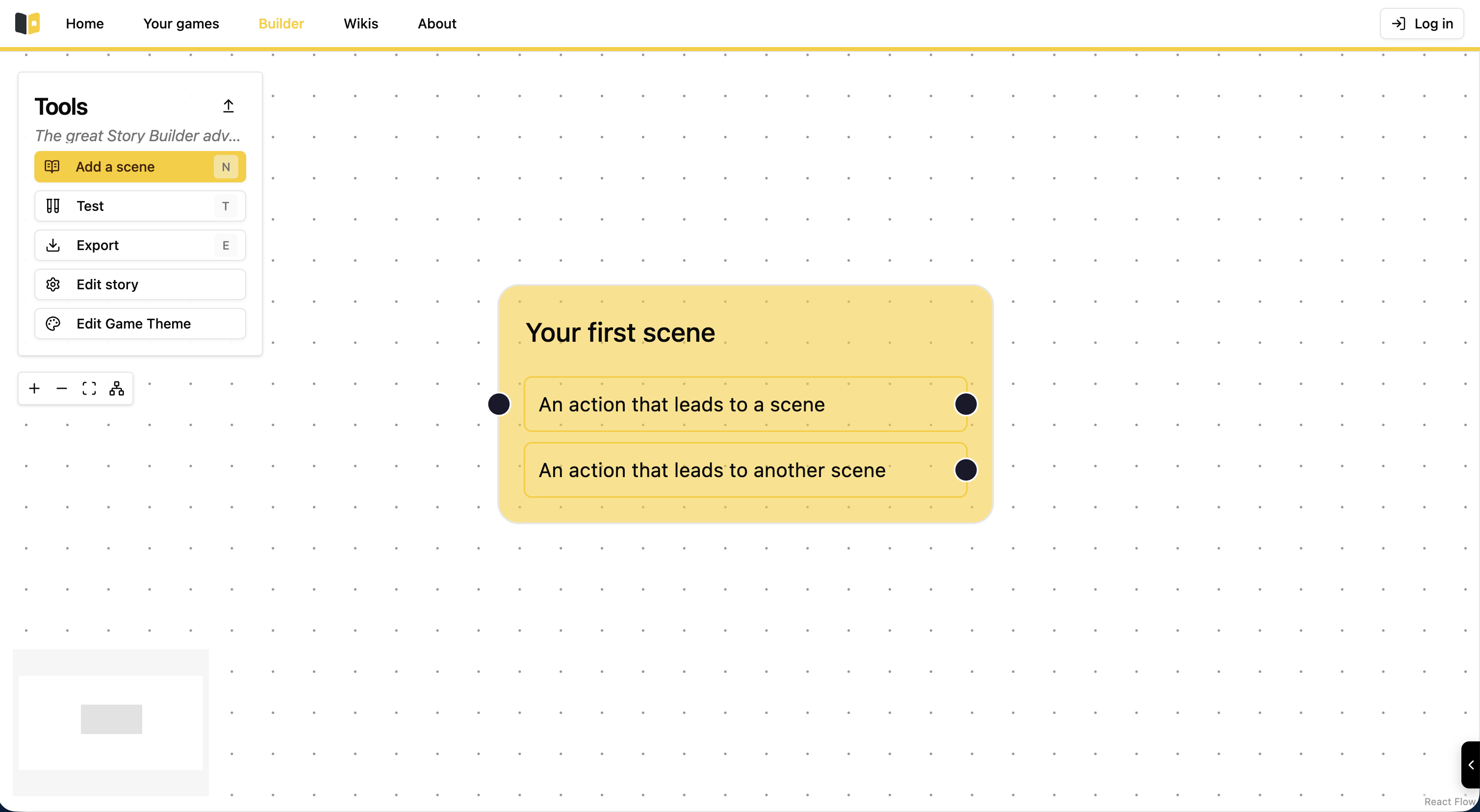
You can see the first scene from which your story will grow.
You need to double click on the first scene card right in the middle so you can initialize your first scene.
Once you have a double clicked on it, a popup window will appear.
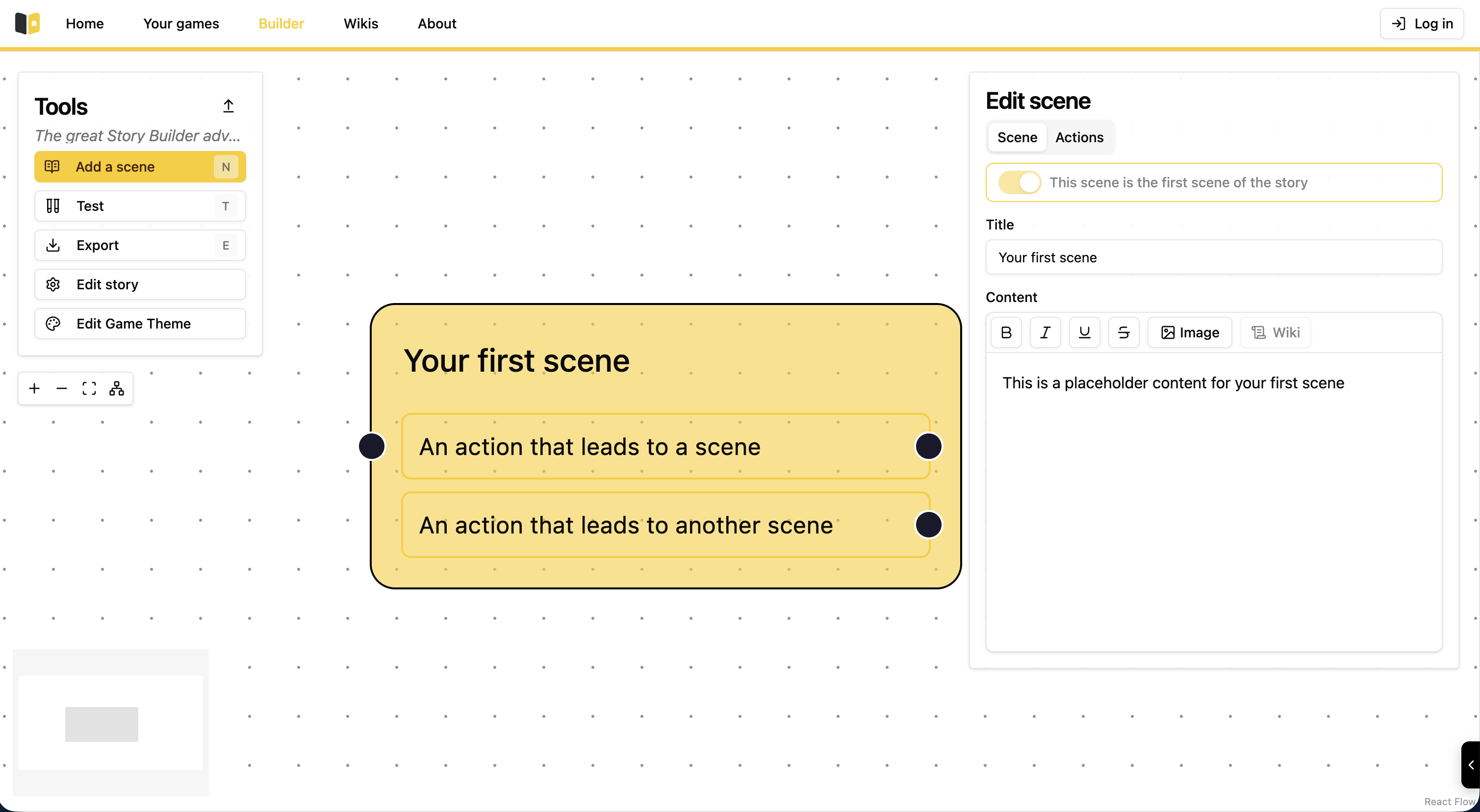
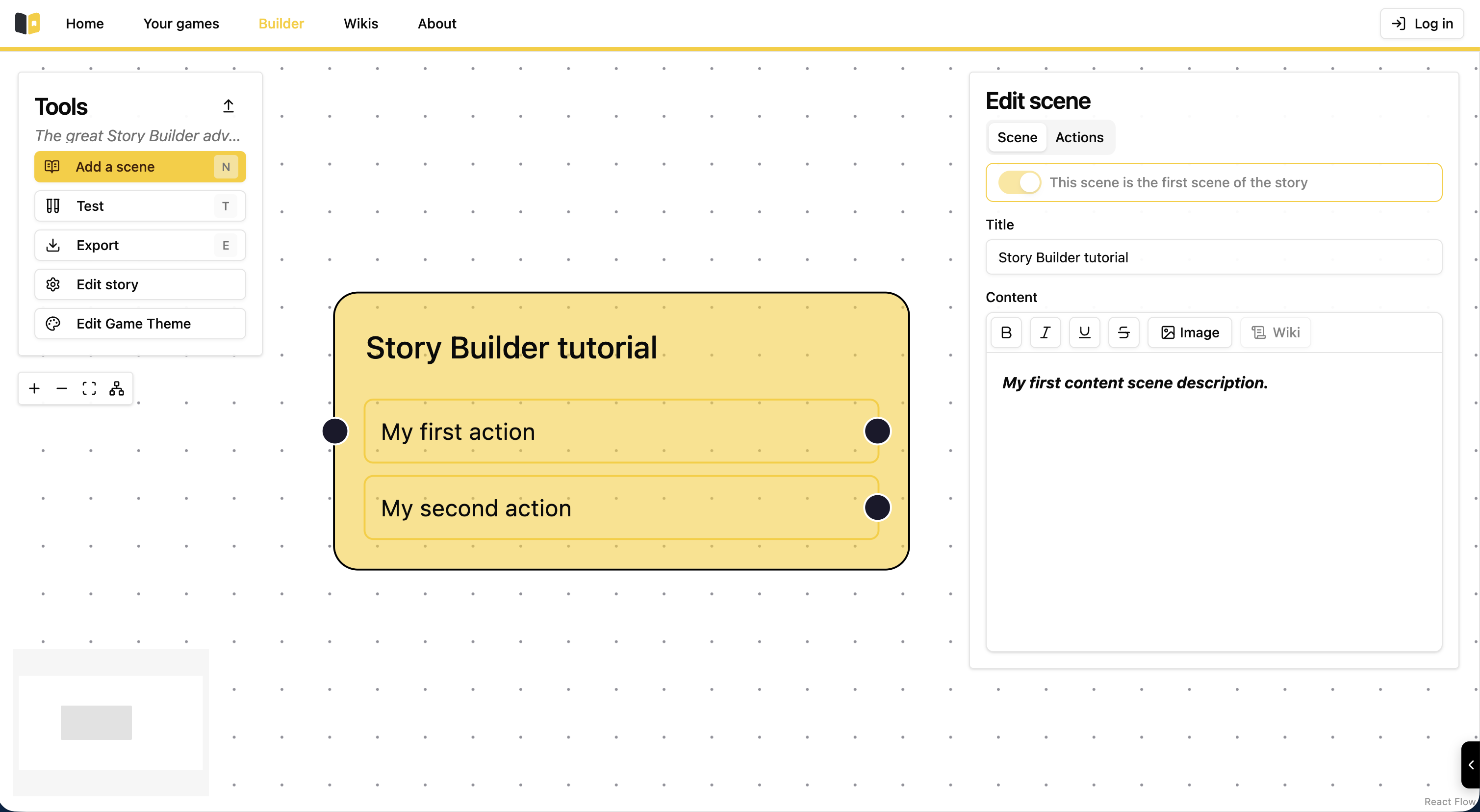
This "Edit scene" popup contains 2 main tabs named Scene and Actions. You need next to type a title and a description for your story.
The title is the name you give to your scene, you will be able to name every single scene you have created on Story Builder. This will allow you to keep tabs more easily on your story. For clarity purposes, we recommend that you use a coherent naming convention, so that you do not get lost while creating your story.
The "first scene" allows you to turn any scene in the builder into the first "starting scene". Here again we advise you to be logical when choosing your first scene because it is essentially the starting point of your story.
Content is the core narrative element of your scene. This is what the player/reader will see when reading your story. You can think of it as the content of a page in a book.
You can add images to your content description, if you click on the "image" button. Then you can copy paste an image url from the internet.
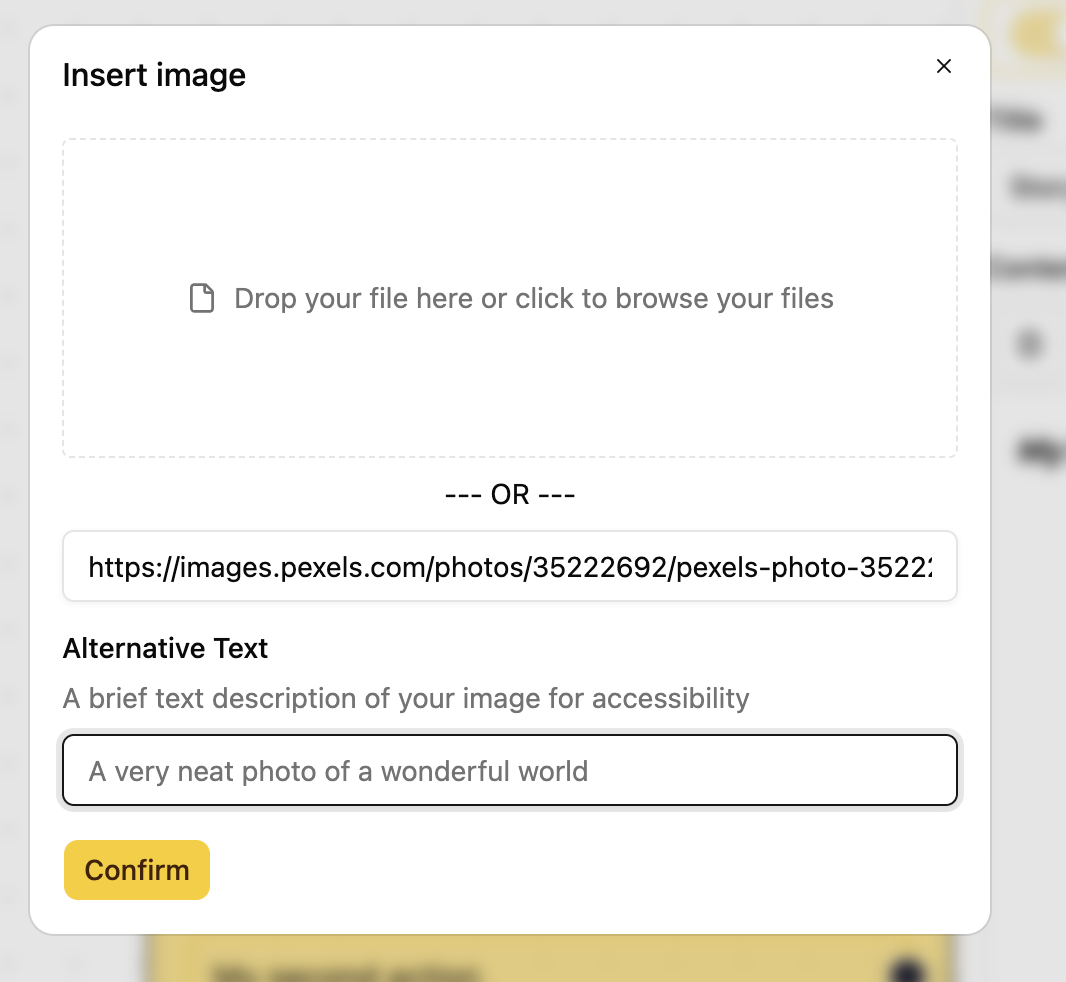
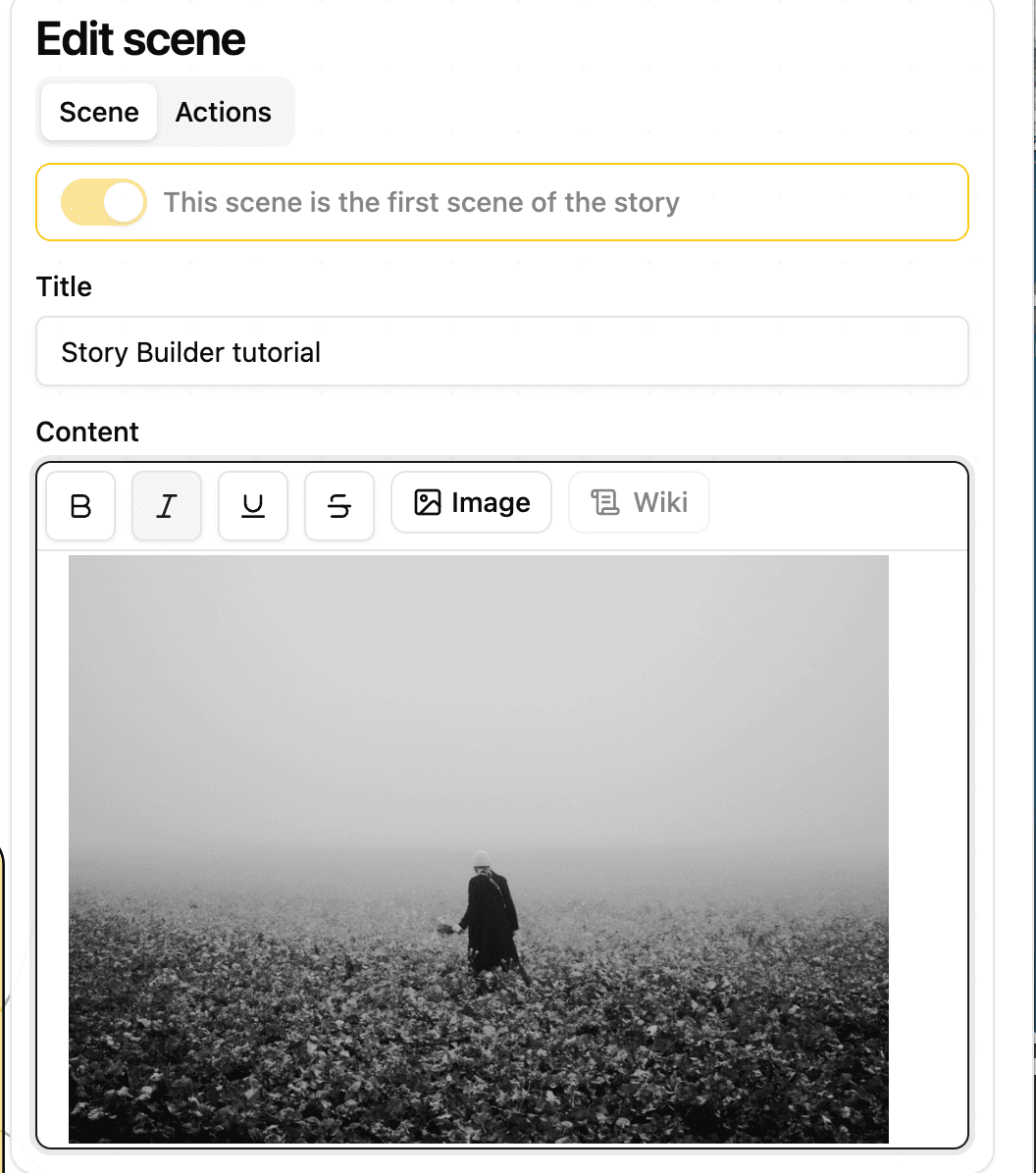
Rich text is available to you in the description field. As you can see, I used bold and italic for my description text. You can access the "Actions" tab by clicking on it.
This is what you get once you have filled out all the necessary information:
To create a new scene linked to one of the two actions you have to click on the black dot next to the chosen action.
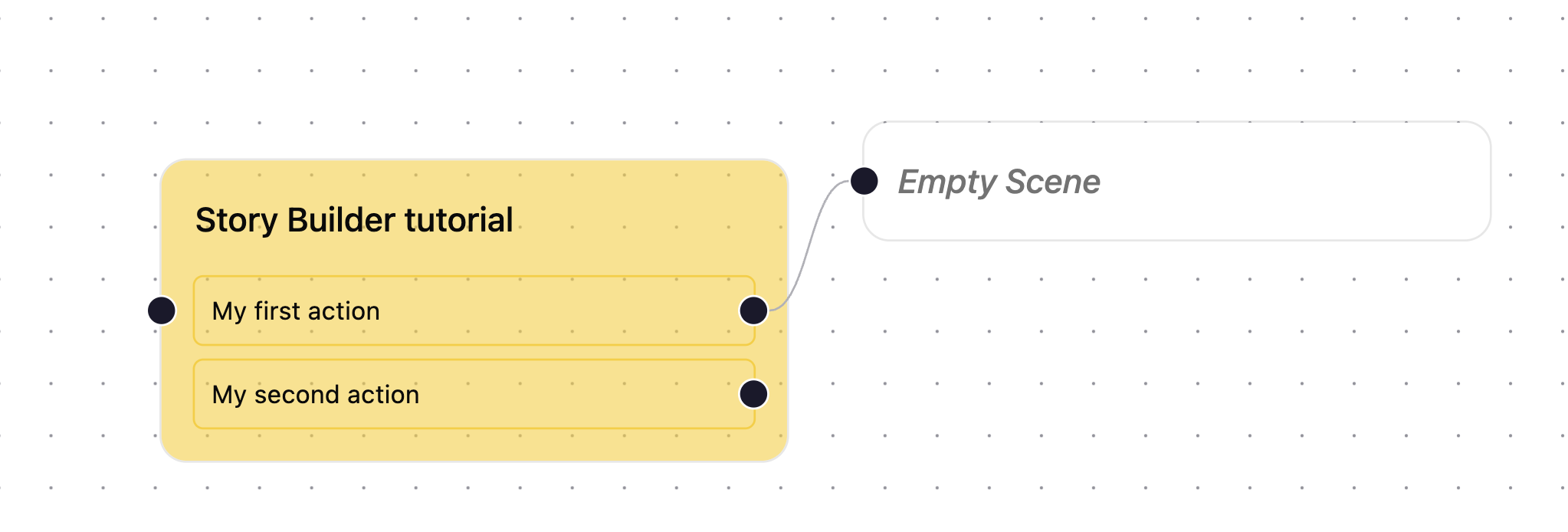
From then you just have to fill the scene like we just did to create your second scene.
"Actions" represent the choices made by the player/reader throughout the story. They allow the reader to advance in the story. In the game, they are rendered as buttons that lead to the next page. Here if you click on the new empty scene and select the "Actions" tab, you can add new actions fields by clicking on the little "+" sign.
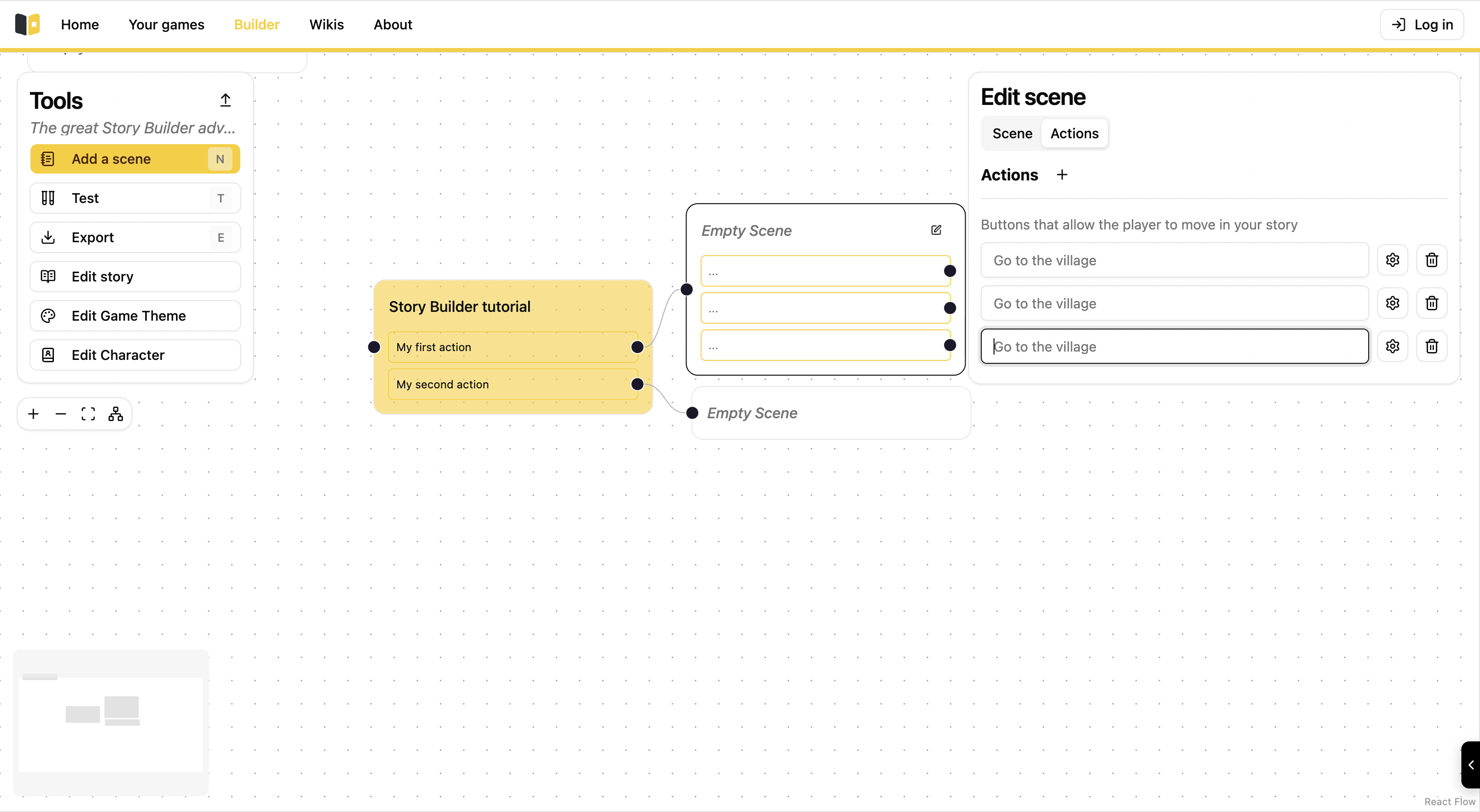
Here is a simple rule for you: More actions = More narrative possibilities for your story.
This is the very essence of Story Builder! Connecting various scenes together to create dynamic stories that are connected to each other.